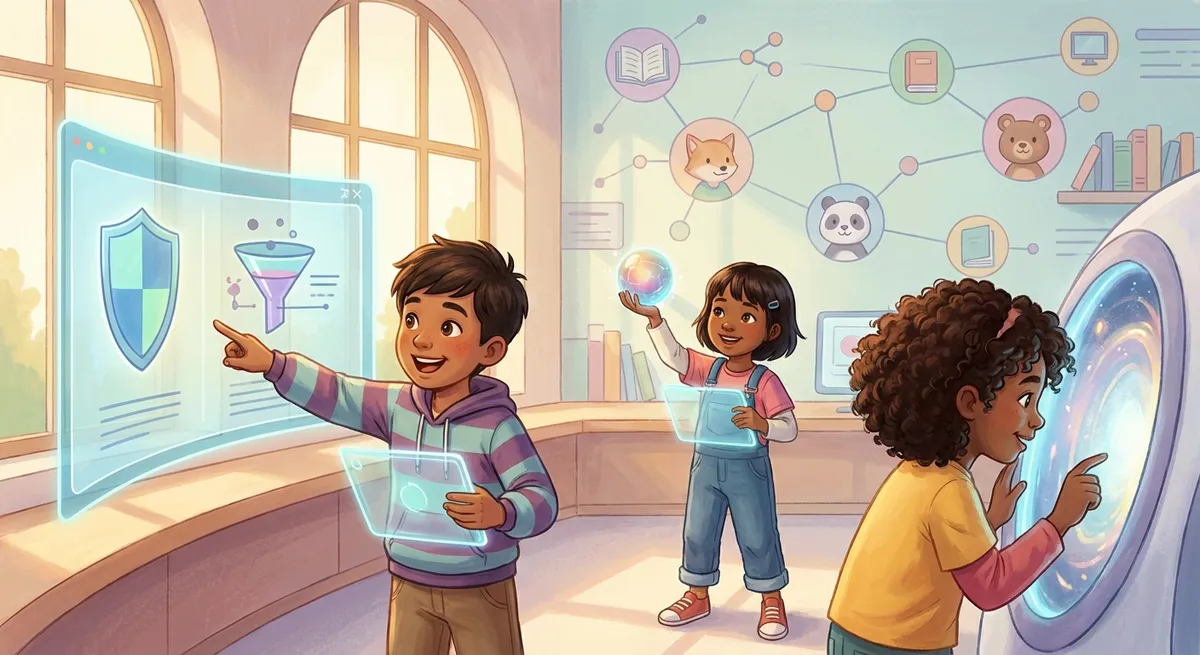
Safe Search: Exploring the Internet’s Friendly Filter
When you hop online to look up a fun fact, watch a video, or play a game, the internet is like a giant library that holds Billions of pages. A filter called Safe Search helps keep the library tidy by hiding pages that aren’t meant for kids. Let’s discover how it works, why it matters, and how you can be a smart explorer!
1. What Is Safe Search?
Safe Search is a setting that many search engines (like Google, Bing, or DuckDuckGo) offer. When it’s turned on, the engine Filters Out (removes) results that contain Inappropriate (not suitable) content such as scary images, rude words, or adult topics.
- Keyword – a word you type into the search box.
- Algorithm – a set of instructions a computer follows to decide which results to show.
Example:
You type “dinosaur facts.” With Safe Search on, the results will be about real dinosaurs, museum sites, and kid‑friendly videos. Without it, you might see a random website that talks about something unrelated and not safe for kids.
2. How Does Safe Search Work?
- Scanning The Words – The algorithm looks at the words in a web page.
- Rating The Content – Each page gets a Rating (like a school grade) based on how kid‑friendly it is.
- Blocking The Bad Ones – Pages with low ratings are hidden from the results.
Cause And Effect:
Cause: A page contains violent images.
Effect: The algorithm gives it a low rating, so Safe Search hides it from you.
Did You Know?
The first Safe Search feature was introduced in 1999, just a few years after the web became popular! 🌐
3. Why Safe Search Matters
- Protects Your Eyes And Mind – Seeing scary or confusing material can make you feel uneasy or distracted from schoolwork.
- Keeps You Focused – When the search results are relevant, you find the right information faster.
- Helps Parents And Teachers – They can feel more comfortable letting you explore online.
Real‑world Example:
Emma wanted to learn how to bake cupcakes. With Safe Search on, she found a kid‑friendly recipe video. Without it, she might have landed on a site selling adult‑only kitchen gadgets, which would have been a waste of time.
4. Tips for Staying Safe Online
| Tip | What to Do |
|---|---|
| Turn On Safe Search | Go to your search engine’s settings and switch the filter “on.” |
| Ask An Adult | If a result looks strange, show it to a parent, teacher, or librarian. |
| Use Trusted Sites | Websites that end in .edu (school) or .org (organization) are usually reliable. |
| Report Bad Results | Most search engines have a “Report inappropriate result” button. Use it! |
Mini Experiment – Test Your Safe Search
- Open a new browser window (ask an adult to help).
- Go to a search engine and turn Safe Search Off in the settings.
- Type a harmless word like “rainbow” and note the first 5 results.
- Now turn Safe Search On and search the same word again.
- Compare the lists. Did any strange results disappear?
Write down what you observed and share it with a grown‑up. This
Write down what you observed and share it with a grown‑up. This will help you see how Safe Search keeps the internet safe for kids.
Safe Search Quiz
Keep Exploring
Search the same topic with and without safe tools alongside an adult, then talk about what changed. Those differences show how filters protect curious explorers.